
Last Updated: 6/22/2026
Want to edit your account information? Let’s go over it step by step.
You’ll first need to be logged in to your account.
Don’t have one? Sign up here
Next, click ‘Sign In‘ up at the top right of the page.
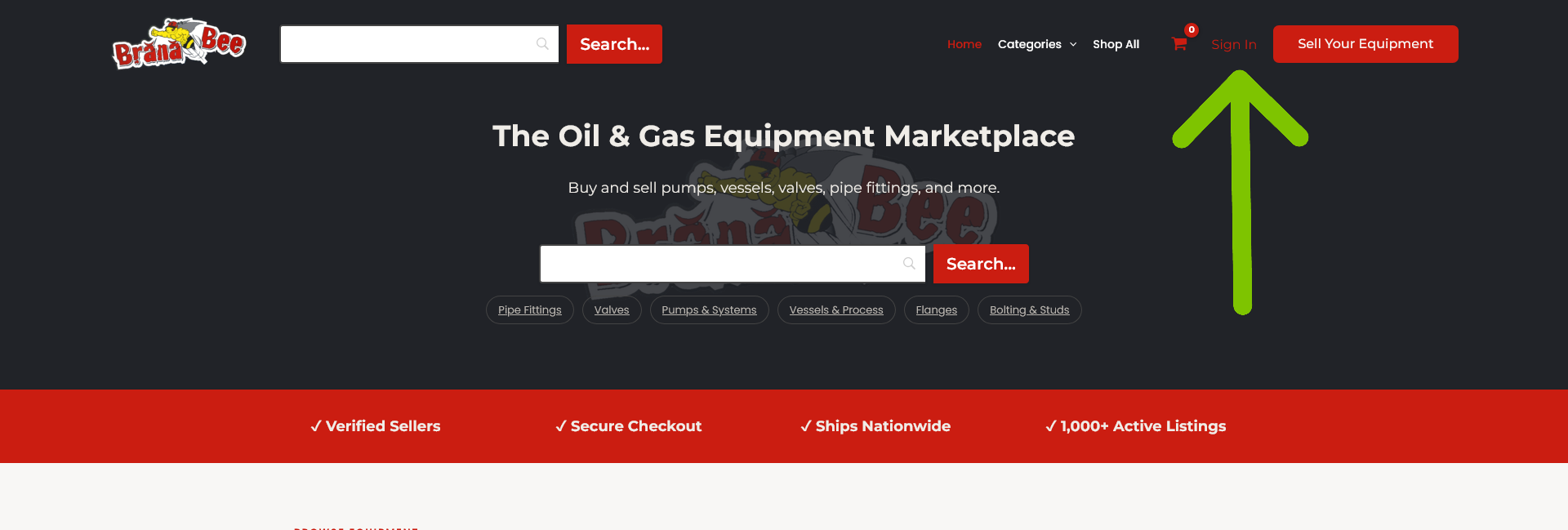
After signing in, you should be taken back to the home page. In the same area as before, click your profile icon. It should take you to the ‘My Account‘ Page (or click here to visit that page now). Next, click ‘Account Details‘, where you will be taken to a new page to manage your information.
What you see on this page varies by what type of account you have. As an example, a seller on BranaBee will have more options appear than say, a customer would. You can edit any of the information you see by simply clicking into the form fields, editing the information and clicking ‘Save Changes‘.
If you scroll down, you will notice a grid of options with icons. Click any of these icons to view and/or edit your information accordingly.
Basic Profile Information
- First Name – Enter your first name here.
- Last Name – Enter your last name here.
- Display Name – What name do you want everyone to see?
- Email Address – enter your email address here – new users will need to verify email.
Password Change
- Current password – Enter your current password for security purposes.
- New password – Enter your new password. Character rules apply here.
- Confirm New password – Confirm your new password by re-entering your new password.
Seller Options
TIN Number (Taxpayer Identification Number) – Your government issues tax ID number, in the USA it is typically 2 characters, a dash, and then 7 characters. For example:
00-1234567
API Calls
The following options are for shipping calculation.
In the background, BranaBee uses what’s called an API call – which basically means
- Sellers input correct product information
- Sellers create and/or share account information with BranaBee in the My Account area.
- Customers shop and venture to the checkout.
- Once an address is provided, BranaBee requests live shipping rate information from Shipping Provider’s websites (like UPS, USPS, DHL, FedEx, etc). This is the API call happening in real time.
- Customers choose their provider, and pay for shipping and freight.
- Calculations only happen on your products if you have accounts with providers like UPS, USPS, FedEx, Stamps.com, or DHL. You’ll want to set up your account with each provider on your own. Shipping can get messy, and the hardest part is set up. After that, it’s easy for everyone.
- If you need help with setting this up, we encourage you to please contact us right away.
Privacy notice – In order for live rates to show for the customer at checkout, our API call has to verify that you are a real account holder, what account you hold, and that you have an access key to perform the call. This is called your API credentials. This information is stored in our database. It is also available to our administrator(s) as we are expected to help our sellers manage integrations with live shipping rates. Please read our Privacy Policy if you have any concerns.
Why do Sellers each have their own shipping accounts?
It’s fair to assume BranaBee should be the one to calculate shipping. But in reality, it isn’t that simple. To explain it plainly, if a customer purchases multiple products, often, they are from different suppliers. Each supplier has a different location of business. In order to provide the customer with accurate shipping pricing, each business needs their own account(s).
General Tip: Many businesses choose to create dedicated shipping-provider accounts specifically for use with marketplace, e-commerce, or fulfillment platforms. This can help limit privacy concerns by avoiding the sharing of credentials tied to their primary business account. Businesses that prefer not to connect an existing carrier account can often create a separate account for use with the platform, subject to the carrier’s terms and eligibility requirements.
Important:
- Your products will require dimension and weight information in order for live shipping rates to work.
- If your product(s) exceed parcel limits in dimension (8ft in any direction) or weight (over 150lbs) this next section may not apply to you.
- You do not need accounts for each of the following. Only use the providers you want.
UPS Account Details
Need your account info? Don’t have a UPS account? Click here to sign up/log in with UPS.
- UPS User ID – Enter your Account ID for UPS.
- UPS Password – Enter your UPS password.
- UPS Access Key – Enter your UPS Access Key
- UPS Account Number – Enter your UPS Account Number
- Once you’ve confirmed your product(s) weight and dimensions are entered, you should see live rates for UPS appear.
USPS Account Details
Need your USPS account info? Don’t have a USPS account? Click here to sign up/log in with USPS.
- USPS User ID – Enter your Account ID for USPS.
- USPS User Password – Enter your password for your USPS account
- Once you’ve confirmed your product(s) weight and dimensions are entered, you should see live rates appear for USPS.
Stamps.com Account Details
Need your Stamps.com account info? Don’t have a Stamps.com account Click here to sign up/log in with Stamps.com.
- Stamps User Name – Enter your Account username for Stamps.com
- Stamps Password – Enter your password for Stamps.com
- Once you’ve confirmed your product(s) weight and dimensions are entered, you should see live rates appear for Stamps.
DHL Account Details:
Log in/Create an account with DHL by clicking here.
- DHL Account Number – Enter your DHL account number.
- DHL Site ID – Enter “BranaBee.com” here.
- DHL Password – Enter your password for DHL here.
- Once you’ve confirmed your product(s) weight and dimensions are entered, you should see live rates appear for DHL.
Buyer Company ID
You may ignore this section. BranaBee only does business in the United States.
- Buyer VAT ID (Tax ID used in the EU)
- Buyer Poland KSeF ID (used in Poland)
- Buyer SIRET ID (used in France. Ignore this)
Radio Buttons
- Subscribe to our newsletter radio button – you may choose to describe to BranaBee’s newsletter.
- Unsubscribe from our newsletter radio button – You may choose to unsubscribe anytime.
- Receive Order Updates radio button. – If you want Order updates (recommended) please be sure to check this radio button.
We hope this helped edit your account information!
Still having trouble? Contact Us
Give us a like/follow on Instagram!